

The Ultimate Guide to Backup WordPress Site in 2026

Written by
NetizensJuly 3, 2024
13 min read
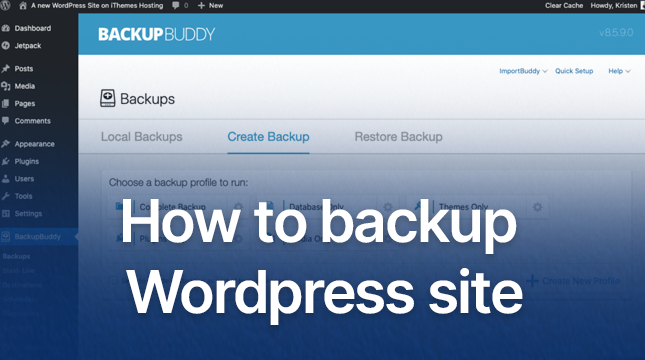
Your WordPress website is more than just a collection of pages. It is your digital home, your brand’s voice, and the result of countless hours of hard work. If you are still deciding between platforms, check out our comparison of Wix vs WordPress to see why WordPress gives you greater flexibility and control. But like any home, it is vulnerable. A single plugin update gone wrong, a server crash, or a malicious hack can wipe out everything in seconds.
That is why regular backups are not optional. They are essential.
In this complete, step-by-step guide, you will learn:
• Why backups are your ultimate safety net
• How to create manual backups without plugins and completely free
• The best free backup plugins with detailed setup steps
• How to back up your website on Hostinger both automatically and manually
• How to protect your site without using any plugins
• How to restore your website when something goes wrong
Let’s begin and ensure your WordPress site stays secure and recoverable at all times.
Why You Must BackUp WordPress Site
Did you know that about 80% of compromised WordPress websites never fully recover? WP White Security claims that losing website data can have disastrous consequences.
Numerous factors can jeopardize your website, including:
• Plugin vulnerabilities
• Brute force attacks
• Server or hosting failures
• Accidental file deletions
• Theme or update conflicts
Your entire website may crash or go down due to any one of these problems. For your digital home, having a trustworthy backup is similar to having insurance. You can rest easy knowing that your hard work and content are protected no matter what. You can also make managing content easier by learning how to duplicate a page in WordPress safely and efficiently.
To make sure your backups are effective, follow the 3-2-1 Backup Rule:
• Keep 3 copies of your website
• Store them on 2 different types of devices or media
• Keep 1 copy offsite, such as on Google Drive or Dropbox
You can keep your WordPress website functioning properly and recover swiftly from any disaster if you have a good backup plan.
How to BackUp WordPress Site Manually
A manual backup is the best option if you prefer to have total control over your website and don’t want to rely on plugins. Additionally, it’s perfect if you want to ensure that every detail is managed by hand or are migrating your website.
There are two primary components to your WordPress website:
• Files (themes, plugins, uploads, and the wp-config.php file)
• Database (posts, pages, comments, and settings)
Let’s start with backing up your files.
Step 1: Back Up Files Using FTP (Recommended)
You will need a free tool called FileZilla to connect to your server.
Get your FTP credentials:
Log in to your hosting dashboard (and make sure you can access your WordPress login page before starting the process).
Look for FTP Accounts or SFTP
Note down your Host, Username, Password, and Port (usually 21)
Open FileZilla and enter your credentials, then click Quickconnect.
Once connected, navigate to your website’s root directory. This is usually found at /public_html/ or /www/yourdomain.com/.
Select all the files and folders, right-click, and choose Download. Save everything to a folder on your computer, for example, WP-Backup-2025-10-28.
Step 2: Backup Database via phpMyAdmin
The database, the second component of your website, needs to be backed up now that your site files are secure. All of your users, settings, pages, comments, and posts are kept here.
Here is how to do it:
- Log in to your hosting control panel and open phpMyAdmin under the Databases section.
- On the left-hand side, select your WordPress database. If you are unsure which one it is, you can find the database name in your wp-config.php file next to DB_NAME.
- Once selected, click on the Export tab at the top.
- Choose the Quick export method and set the Format to SQL.
- Click Go to start the download.
- Save the file to your backup folder and name it something like database-2025-10-28.sql.
That’s it! Your WordPress website, including all of its files and database, is now fully backed up manually.
Backup WordPress Site with a Plugin
The simplest method for backing up your WordPress website is to use a plugin if you like a straightforward, hands-off approach. Consider it a solution that takes care of everything on its own.
Here are some of the best free WordPress backup plugins for 2025:
| Plugin | Best For | Cloud Storage | Auto-Schedule | Rating |
|---|---|---|---|---|
| UpdraftPlus | Beginners, cloud backups | Yes (Google Drive, Dropbox) | Yes | 4.8/5 |
| Duplicator | Migrations and backups | Manual download | No (Pro version adds this) | 4.9/5 |
| WPvivid | Incremental backups and staging | Yes (S3, OneDrive) | Yes | 4.7/5 |
Among these, UpdraftPlus stands out as the most beginner-friendly and reliable free option. If you are curious about how plugins are built and why they matter, explore our post on WordPress plugin development and why it is important.
How to Use UpdraftPlus (Free and Recommended)
- Install the Plugin
- Go to your WordPress Dashboard
- Navigate to Plugins > Add New
- Search for UpdraftPlus
- Click Install Now and then Activate
- Go to your WordPress Dashboard
- Create Your First Backup
- Go to Settings > UpdraftPlus Backups
- Click Backup Now
- Make sure both Include database and Include files are checked
- Go to Settings > UpdraftPlus Backups
- Set Up Automatic Schedules
- In the Settings tab, configure backup frequency:
- Files: Every 4 hours
- Database: Every 12 hours
- Files: Every 4 hours
- Choose to keep the most recent 3 backups
- In the Settings tab, configure backup frequency:
- Connect Cloud Storage
- In Settings, select Google Drive (or another preferred option)
- Follow the on-screen authentication steps to link your account
- In Settings, select Google Drive (or another preferred option)
You can rest easy knowing that your backups will run automatically and that your website data is safely stored in the cloud when you have UpdraftPlus configured.
Backup WordPress Site on Hostinger (Auto + Manual)
You’re in luck if your website is hosted by Hostinger. Hostinger’s unique control panel, hPanel, makes backing up your WordPress website a breeze. For added flexibility, you can use a plugin or opt for manual or automatic backups.
Option A: Automatic Backups (Free on Most Plans)
- Log in to your hPanel account.
- Go to Websites and select your site.
- Navigate to Files > Backups.
- Click Generate New Backup and wait for the process to complete. It usually takes between one to four hours.
- Once ready, you can download the backup directly to your computer.
Option B: Manual Backup via File Manager
- Log in to hPanel and open File Manager.
- Go to the public_html folder, where your website files are stored.
- Select all the files and click Download. Hostinger will automatically compress them into a zip file for you.
This is a quick and convenient way to create a manual backup whenever you want an extra copy.
Option C: Use a Plugin (UpdraftPlus Recommended)
UpdraftPlus functions flawlessly on Hostinger if you would rather use a plugin. Just install and configure it as previously mentioned. All of the popular backup plugins are fully supported by Hostinger, making it simple to automate backups or link them to cloud storage.
Backup WordPress Without Plugins (Free & Secure)
You can backup WordPress site without the need for any plugins if you would rather keep it simple and light. The majority of hosting companies already come with built-in tools that make backups easy, safe, and cost-free.
Here are some of the most popular hosting providers and the backup tools they offer:
| Host | Free Backup Tool |
|---|---|
| Hostinger | hPanel Backups |
| Bluehost | cPanel → Jetpack or File Manager |
| SiteGround | SG Optimizer → Backup |
| A2 Hosting | cPanel → Backup Wizard |
There are a few obvious benefits to using your hosting tools. It guarantees that your backups are handled directly on your server, keeps your website quick, and avoids needless plugin bloat.
To create and download your backup, just sign in to your hosting dashboard, select the backup or file manager option, and then follow the instructions.
Anyone looking for a safe, plug-in-free way to protect their WordPress website will love this method.
How to Restore Your Backup (The Part Most People Skip)
Making backups is just half the work. What really safeguards your website is knowing how to restore it properly. If you follow the correct procedures, restoring your WordPress website is simple, regardless of whether you used a plugin or a manual backup.
1. Restore a Manual Backup
If you created your backup manually, here is how to bring your site back online:
- Connect to your server using FTP (FileZilla works great).
- Navigate to the public_html folder.
- Upload your backup files and overwrite the existing ones.
- Log in to your hosting control panel and open phpMyAdmin.
- Select your WordPress database, then click Check All > Drop to remove the current tables.
- Click Import and upload your saved .sql database file.
- If your database name, username, or password has changed, open the wp-config.php file and update those details accordingly.
Your website should now be fully restored.
2. Restore Using a Plugin (UpdraftPlus Example)
If you used UpdraftPlus or a similar plugin:
- Go to your WordPress dashboard and open UpdraftPlus under Settings.
- Click on the Existing Backups tab.
- Find the backup you want to restore and click Restore.
- Select the components you want to bring back (database, plugins, themes, uploads, etc.).
- Let the plugin complete the process.
Restoring your site might sound intimidating, but once you do it once, you will feel confident knowing you can recover from any issue quickly. And if you ever face redirect issues after restoring, here are some practical ways to fix the “Too Many Redirects” error in WordPress.
Final Thoughts: Start Backing Up Today
The best backup is the one that will save you in the event of an emergency, but that you will never need. Years of work tomorrow can be safeguarded by a few minutes of setup today.
Here is a quick way to get started:
- Install UpdraftPlus (it is free)
- Run your first backup
- Connect it to Google Drive or another cloud service
- Relax knowing your site is protected
It really is that simple.
What about you? Have you set up your WordPress backup yet?
FAQs
1. Why should I back up my WordPress site?
2. How often should I back up my WordPress site?
3. What is the best free plugin to back up a WordPress site?
4. Can I back up my WordPress site without plugins?
5. How do I restore my WordPress backup?




Written by
Netizens



Let's Start Your Project
Get free consultation for your digital product idea to turn it into reality!
Get StartedRelated Blog & Articles

Netizens
October 28, 2024
Enhancing Veterinary Care Through Innovative Digital Solutions
The veterinary field is advancing quickly, and managing patient information efficiently has become essential for providing

Netizens
March 13, 2023
10 Elements of Modern Web Design That You Need to Know
What you already knew about web design a year ago is almost obsolete today. There are

Netizens
November 21, 2022
Hire Skilled Developers For Attractive UI/UX Website Designs
The demand for good UI/UX website designers is at an all-time high as several businesses are