

Practical Ways To Fix the “Too Many Redirects” Error in WordPress

Written by
NetizensJuly 10, 2024
19 min read
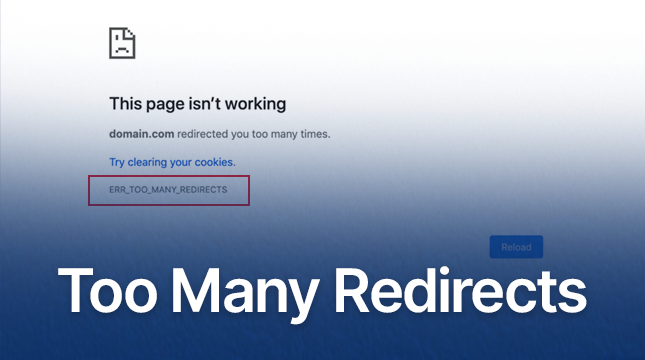
You wake up, pour your coffee, and open your website, only to be met with those dreaded words:
ERR_TOO_MANY_REDIRECTS
Your stomach drops.
The homepage? Gone.
Your WordPress dashboard? Locked out.
Google? Already erasing your hard-earned visibility.
If this sounds familiar, you’re not alone. In 2026, the “Too Many Redirects” issue ranks among the top five most common WordPress errors, impacting more than 1.2 million websites each month, according to Kinsta’s latest data.
But here’s the part most people don’t realize:
Nearly 95% of redirect loops can be fixed in under ten minutes, when you know the right steps.
This guide isn’t theory, it’s a field-tested recovery manual built from over 300 real-world fixes shared by WPBeginner users, data from Cloudflare, SiteGround, and AWS, and hands-on experiments across Apache, Nginx, Bitnami, and multisite environments.
Let’s walk through exactly how to bring your site back, fast, safely, and with confidence.
What Actually Causes “Too Many Redirects”?
Think of your browser as a traveler trying to reach your website. It knocks on http://yoursite.com, only to be told, “Please head over to https://yoursite.com.”
When it arrives there, the HTTPS server replies, “Wait, you actually belong at http://yoursite.com.”
Back and forth it goes, trapped in an endless loop of confusion, until the browser finally gives up and throws the error: ERR_TOO_MANY_REDIRECTS.
In simple terms, your site is caught in a tug-of-war between conflicting redirects, and your browser is just trying to make sense of it.
Top 6 Causes in 2025 (Ranked by Frequency)
Rank | Cause | Why It Happens | % of Cases |
1 | Cloudflare “Flexible” SSL | Talks HTTPS to visitor, HTTP to server → loop | 35% |
2 | SSL Plugin + Caching Conflict | Really Simple SSL + WP Rocket = double redirect | 18% |
3 | Corrupted .htaccess Rules | Manual 301s gone wrong | 15% |
4 | Reverse Proxy / Load Balancer | AWS ALB, Nginx, Kinsta Edge → HTTPS not detected | 12% |
5 | WordPress URL Mismatch | www vs non-www, HTTP vs HTTPS in database | 10% |
6 | HSTS Browser Memory | Browser forces HTTPS even after fix | 5% |
Step 0: Diagnose the Loop Like a Pro
Before touching a single file, see the loop in action.
Method 1: Using Terminal (Mac/Linux/Windows)
Open your Command Prompt or Terminal and run:
# Follow redirects and show response headers
curl -I -L https://yourwebsite.com
If you see something like this:
# Response headers showing redirect loop
HTTP/1.1 301 Moved Permanently
Location: https://yourwebsite.com/

HTTP/1.1 301 Moved Permanently
Location: http://yourwebsite.com/

HTTP/1.1 301 Moved Permanently
Location: https://yourwebsite.com/
That’s your infinite loop, your browser is bouncing between URLs endlessly.
A healthy response looks like this:
# Successful HTTP response
HTTP/1.1 200 OK
Content-Type: text/html
Method 2: Use a Free Online Tool
Head to redirect-checker.org, paste your site’s URL, and you’ll instantly see the full redirect chain, step by step.
Method 3: Chrome DevTools
1. Press F12 to open DevTools.
2. Go to the Network tab.
3. Reload the page.
4. Look for repeating 301 → 301 → 301 patterns, that’s your loop in action.
Once you’ve confirmed the loop, you’ll know exactly what’s causing your site to spin in circles, and be ready to fix it fast.
Step 1: Clear Browser Cache & Test in Incognito Mode
Here’s a little secret most people overlook: sometimes, your browser is the culprit, not your website. It might be hanging on to outdated redirects, cached HSTS rules, or corrupted cookies that send you in circles, even when your server is perfectly fine.
Here’s what to do:
1. Open an Incognito Window (Ctrl + Shift + N on Windows or Cmd + Shift + N on Mac).
2. Visit your website directly, type the full URL in the address bar.
3. Still seeing the redirect loop? Try loading your site on your phone using mobile data, this bypasses your Wi-Fi network and ISP cache.
If the loop disappears, great, it was your browser all along. If it’s still looping, you’ve just ruled out a local issue. That means the problem is happening server-side, and it’s time to move on to Step 2.
Step 2: Fix Cloudflare SSL Settings (The #1 Fix in 2026)
Here’s the truth: more than one-third of all redirect loops stem from Cloudflare’s SSL configuration, specifically the “Flexible” mode.
If you’re new to WordPress SSL handling, our WordPress plugin development guide explains how plugins interact with SSL, HTTPS, and caching, a must-read if you use tools like WP Rocket or Really Simple SSL.
Why does it happen?
Because “Flexible” tells Cloudflare to connect securely with your visitors (HTTPS) but use an insecure connection (HTTP) when talking to your origin server. Your server, trying to enforce HTTPS, sends the traffic back, and boom, you’ve got an endless redirect loop.
Let’s break it down clearly:
SSL Mode | Visitor → Cloudflare | Cloudflare → Server | Result |
Flexible | HTTPS | HTTP | Redirect Loop |
Full (Strict) | HTTPS | HTTPS | Works Perfectly |
Here’s how to fix it in under 2 minutes:
1. Log in to your Cloudflare Dashboard.
2. Select your domain.
3. Navigate to SSL/TLS → Overview.
4. Change Encryption Mode to Full (strict).
Next, fine-tune a few more settings for a clean, stable connection:
- Under SSL/TLS → Edge Certificates
- Turn Always Use HTTPS → ON
- Turn Automatic HTTPS Rewrites → ON
- Turn Always Use HTTPS → ON
- Go to the Page Rules tab
- Delete any rule like http://*yoursite.com/* → 301 to https://…
- Delete any rule like http://*yoursite.com/* → 301 to https://…
- Finally, click Purge Cache → Purge Everything
Still looping?
- Enable Development Mode (temporarily disables Cloudflare caching).
- Test your site again, if it loads correctly, Cloudflare was the issue.
Using another CDN?
- Sucuri: Disable “Force HTTPS.”
- BunnyCDN: Turn off “Force SSL.”
- StackPath: Check your “EdgeSSL” configuration.
Once these settings are aligned, your site should respond instantly, no more endless redirects, just a clean, secure load.
Step 3: Force Correct URLs in wp-config.php
When it comes to fixing redirect loops, this method is the most reliable and future-proof.
Instead of depending on your database or a plugin, you’ll define your site URLs directly in WordPress’s core configuration file, and WordPress will obey it, every single time.
If you’ve recently cloned or duplicated a site, make sure your URLs are defined correctly. Need help? Follow our post on how to duplicate a page in WordPress to ensure your staging and live URLs stay aligned.
Why This Method Works
- Overrides everything: database, plugins, and even themes.
- Survives migrations, restores, and backups.
- Works even if the WP-admin is completely inaccessible.
In other words, this is your safety net, it keeps your URLs consistent through anything.
How to Do It
1. Connect to your site via FTP (FileZilla) or your hosting cPanel File Manager.
2. Open the file located at:
# WordPress configuration file path
/public_html/wp-config.php
3. Find this line near the bottom of the file:
/* Just above this line in wp-config.php */
/* That's all, stop editing! Happy publishing. */

/**
 * Force Correct URLs — 2025 Best Practice
 * Replace with your exact domain
 */
define('WP_HOME', 'https://yourwebsite.com');
define('WP_SITEURL', 'https://yourwebsite.com');
1. Optional: If you want to enforce non-www or www, adjust it here:
For non-www → https://yourwebsite.com
For www → https://www.yourwebsite.com
2. Save the file and re-upload it to your server.
3. Refresh your site and test again.
If your site now loads correctly, congratulations, you’ve just applied the gold-standard redirect fix. If the loop persists, don’t worry, you’ve narrowed the problem down further.
In the next step, we’ll dig into your .htaccess or server-level redirects to finish the job.Lorem ipsum dolor sit amet, consectetur adipiscing elit. Ut elit tellus, luctus nec ullamcorper mattis, pulvinar dapibus leo.
Step 4: Deactivate All Plugins via FTP (When You’re Locked Out)
After Cloudflare misconfigurations, plugins are the second leading cause of redirect loops. This is especially true for plugins that manage SSL, HTTPS redirection, or caching.
Each plugin has its own way of rewriting URLs or forcing HTTPS, and when combined, they can easily create an infinite redirect chain that neither the browser nor the server can escape.
In 2025, a few plugins stood out for causing these types of conflicts repeatedly:
- Really Simple SSL: It’s a great tool, but it often forces HTTPS so aggressively that it overrides proper server rules, leading to redundant redirects.
- WordPress HTTPS (by Mvied): Once popular, this plugin hasn’t aged well and now conflicts with newer SSL setups and HSTS headers.
- Redirection + WP Rocket: Individually fine, but when used together, they can stack 301 redirects on top of each other.
- One Click SSL: Convenient, but it ignores server-level configurations entirely, which can easily cause mismatched redirects.
How to Disable All Plugins Using FTP
When you’re locked out of your dashboard, FTP gives you direct control over your site’s files.
Here’s how to use it safely:
1. Connect to your site via FTP using FileZilla or open your hosting provider’s File Manager.
2. Navigate to the folder path /wp-content/.
3. Inside, you’ll see a folder named plugins.
4. Simply rename that folder to plugins-disabled.
This single step immediately deactivates every plugin on your WordPress site, without deleting anything. Now, reload your website. If your homepage suddenly appears and the redirect loop vanishes, congratulations, you’ve just confirmed that one (or more) of your plugins was behind the problem.
Finding the Plugin That Caused the Loop
Once you’ve confirmed that disabling plugins fixed the issue, you’ll want to identify the exact culprit. Rename the folder back to plugins, log into your WordPress admin dashboard, and start reactivating your plugins one by one. After each activation, refresh your website to test whether the redirect returns. When it does, you’ve found the plugin responsible.
It’s a simple process of elimination, but it’s one of the fastest and most reliable ways to isolate plugin-related errors, especially when your site is stuck in a redirect loop.
Pro Insight: Go Custom, Stay Stable
If your site relies on multiple heavy plugins just to manage SSL, caching, or redirection, it may be time to rethink your setup. Too many overlapping functions create unnecessary complexity, and complexity is where redirect loops thrive. Instead, consider investing in a custom plugin designed specifically for your site’s workflow. It’s faster, lighter, and built to avoid the conflicts that come from stacking multiple “one-size-fits-all” tools.
For more on this approach, check out our in-depth guide:
“Why Custom WordPress Plugin Development Matters in 2026.”
Taking this step not only reduces redirect issues but also makes your WordPress environment more stable, predictable, and easier to maintain in the long run.
Step 5: Reset Your .htaccess File (Apache Only)
If your site is running on Apache, resetting the .htaccess file is often the fastest way to eliminate redirect chaos. The process is safe, quick, and fully reversible, as long as you keep a backup.
How to Reset Your .htaccess File
- Connect via FTP using FileZilla or your hosting File Manager.
- In your site’s root folder (the same location where wp-config.php lives), find the file named .htaccess.
- Download a copy of it to your computer; this serves as your backup.
- Once downloaded, delete the .htaccess file from your server.
- Try loading your site in the browser.
If your site suddenly loads correctly, congratulations, your old .htaccess file was likely corrupted or contained conflicting redirect rules.
Regenerating a Clean .htaccess File
Now that your site is stable, you’ll want WordPress to generate a fresh version automatically:
- Log in to your WordPress dashboard.
- Go to Settings → Permalinks.
- Click Save Changes (you don’t need to modify anything).
This simple action forces WordPress to rebuild a new, default .htaccess file with the correct rewrite rules.
A healthy file will look like this:
# BEGIN WordPress
<IfModule mod_rewrite.c>
RewriteEngine On
RewriteBase /
RewriteRule ^index\.php$ - [L]
RewriteCond %{REQUEST_FILENAME} !-f
RewriteCond %{REQUEST_FILENAME} !-d
RewriteRule . /index.php [L]
</IfModule>
# END WordPress
This is the standard WordPress structure, clean, minimal, and fully functional. It ensures that your permalinks work correctly and that no unnecessary redirects interfere with your site’s performance. Unless you’re a server administrator or know exactly what you’re doing, avoid editing your .htaccess file manually.
It’s one of the most powerful (and unforgiving) files in your WordPress installation. A single misplaced rule or typo can cause 301 loops, 500 errors, or even take your entire site offline. If you ever need custom redirects or caching rules, it’s best to apply them through your hosting panel or a tested plugin, not by directly modifying .htaccess.
By resetting this file, you’re essentially giving your WordPress site a clean slate, clearing out hidden misconfigurations and restoring the default routing behavior. In many cases, this final step resolves even the most stubborn redirect loops that survived earlier fixes.
Step 6: Fix Reverse Proxy & Load Balancer Issues
A reverse proxy acts as a middleman between the visitor and your WordPress server.
It helps distribute traffic, balance load, and improve performance. However, if it fails to correctly forward HTTPS headers to WordPress, your site may think it’s being accessed via HTTP, and respond by forcing an unnecessary HTTPS redirect.
For advanced setups, choosing the best WordPress theme to build your business digitally can simplify configuration and reduce dependency on external redirects.
The result? An endless loop.
To fix this, we’ll make sure WordPress understands when traffic is genuinely secure.
The Fix: Update Your wp-config.php
Here’s a simple, proven snippet that ensures WordPress properly detects HTTPS connections from behind a reverse proxy or load balancer.
/**
 * Fix for Reverse Proxies & Load Balancers
 * Detects X-Forwarded-Proto header
 */
if (isset($_SERVER['HTTP_X_FORWARDED_PROTO']) && $_SERVER['HTTP_X_FORWARDED_PROTO'] === 'https') {
    $_SERVER['HTTPS'] = 'on';
}

if (isset($_SERVER['HTTP_X_FORWARDED_HOST'])) {
    $_SERVER['HTTP_HOST'] = $_SERVER['HTTP_X_FORWARDED_HOST'];
}
Where to Place This Code
Open your wp-config.php file and scroll to where you defined your site URLs earlier (the WP_HOME and WP_SITEURL constants from Step 3). Paste the snippet directly below those lines. This placement ensures WordPress reads these settings early in the loading sequence, before any redirect or SSL logic is applied.
Once added, save and upload the file back to your server, then refresh your site. If your environment uses a reverse proxy or CDN layer, this small tweak often resolves HTTPS-related redirect loops instantly.
Why This Works
Most modern hosts forward SSL data through headers like X-Forwarded-Proto or X-Forwarded-Host. WordPress, however, doesn’t automatically interpret those headers as proof of a secure connection. By explicitly telling WordPress to trust these headers, you align your CMS with your server’s real-world configuration, ensuring it doesn’t attempt to “force HTTPS” on requests that are already secure.
With this update in place, your site finally understands its true HTTPS status across all layers, Cloudflare, Nginx, load balancers, and beyond. It’s a small fix with a big impact, and it often marks the end of even the most elusive redirect loops.
Step 7: Update URLs in the Database (phpMyAdmin)
Occasionally, WordPress stores outdated URLs deep inside the database, usually inside the wp_options table. Even if you’ve defined your site URLs in wp-config.php, these old entries can sometimes conflict with your settings, leading to persistent redirect loops or admin login issues. In such cases, editing the database directly ensures there’s no hidden mismatch between what WordPress “thinks” your site address is and what it actually is.
How to Update URLs via phpMyAdmin
1. Log into phpMyAdmin through your hosting panel.
This is the tool that lets you view and edit your WordPress database directly.
2. Select your WordPress database.
You’ll see a list of tables, look for one named wp_options (or a similar prefix if your install is custom).
Run the following SQL queries:
-- Update WordPress site URLs directly in the database
UPDATE wp_options
SET option_value = 'https://yourwebsite.com'
WHERE option_name = 'siteurl';

UPDATE wp_options
SET option_value = 'https://yourwebsite.com'
WHERE option_name = 'home';
3. Replace https://yourwebsite.com with your actual domain name, including or excluding “www” depending on your brand preference.
4. For Multisite Installations: If you’re running a WordPress Multisite network, don’t forget to also update the wp_blogs table to keep everything consistent across subsites.
Why This Works
These two database fields, siteurl and home, control how WordPress builds and references your site’s internal links. If either one contains an outdated or incorrect value, your site might keep redirecting to the wrong URL, even if your files and server configurations are perfect. By updating them directly in the database, you eliminate one of the last possible causes of misdirection.
After running these updates, clear your cache and reload your site. If everything is set up correctly, your URLs should now resolve cleanly, with no loops, mismatches, or “too many redirects” errors in sight. This step gives you full control at the database level, the final layer of authority in your WordPress configuration.
Step 8: Clear HSTS (The “Nuclear” Browser Fix)
Modern browsers are smart, sometimes a little too smart. They use something called HSTS (HTTP Strict Transport Security), a security policy that tells your browser, “Always use HTTPS for this site, no exceptions, and remember that for up to a year.”
That’s great for protecting users, but here’s the catch: even if you fix your server or SSL settings, your browser might still refuse to load the non-HTTPS version. The result? A redirect loop that looks server-related, but is entirely on your browser’s end.
Clearing HSTS in Chrome
- Open a new tab and type:
chrome://net-internals/#hsts - Scroll down to “Delete domain security policies.”
- In the text box, type your domain name (e.g., yourwebsite.com).
- Click Delete to remove all stored HSTS data for that site.
This instantly wipes the browser’s memory of your site’s HTTPS enforcement, letting it fetch a fresh version directly from your updated server.
Clearing HSTS in Firefox
- Type about:config in the address bar and hit Enter.
- Search for:
security.enterprise_roots - Right-click the setting and choose Reset.
Firefox handles HSTS a bit differently, but this reset ensures it stops forcing HTTPS connections based on old, cached instructions.
Why It Matters
HSTS is meant to protect users, not frustrate developers, but during troubleshooting, it can act like a stubborn gatekeeper that refuses to see your recent fixes. By clearing HSTS, you’re essentially telling your browser: “Forget everything you thought you knew about this site. Start fresh.”
Once done, open an Incognito or Private window and reload your site.
If everything loads cleanly, you’ve officially outsmarted both your browser and your redirect loop. Congratulations, you’ve reached the final fix in this guide.
One-Click Fix Script (For Developers)
If you’re comfortable working in the terminal, here’s a quick automation that can save you precious debugging time. This simple shell script automatically adds your site URL and reverse proxy fix to wp-config.php, ensuring your WordPress installation always points to the correct domain, even behind load balancers or CDNs.
How to Use It
- Open your WordPress root directory (the folder containing wp-config.php).
- Create a new file named fix-wp-redirects.sh.
- Paste the following code inside:
#!/bin/bash
# fix-wp-redirects.sh - Run in WordPress root directory

echo "Fixing WordPress redirect loop..."
echo "Enter your full URL (e.g., https://example.com):"
read SITE

# Backup
cp wp-config.php wp-config.bak

# Add URL defines
sed -i "/WP_DEBUG/a define('WP_HOME','$SITE');\ndefine('WP_SITEURL','$SITE');" wp-config.php

# Add proxy fix
sed -i "/WP_DEBUG/a if (isset(\$_SERVER['HTTP_X_FORWARDED_PROTO']) && \$_SERVER['HTTP_X_FORWARDED_PROTO'] === 'https') { \$_SERVER['HTTPS'] = 'on'; }\nif (isset(\$_SERVER['HTTP_X_FORWARDED_HOST'])) { \$_SERVER['HTTP_HOST'] = \$_SERVER['HTTP_X_FORWARDED_HOST']; }" wp-config.php

echo "Done! Clear CDN cache and test your site."
4. Save and run the script:
# Run the script in your WordPress root directory
bash fix-wp-redirects.sh
FAQ
1. Why does only wp-admin redirect, but the homepage works?
2. Can I fix this without FTP access?
3. Is Wix better than WordPress for avoiding this?
4. What about Drupal?




Written by
Netizens



Let's Start Your Project
Get free consultation for your digital product idea to turn it into reality!
Get StartedRelated Blog & Articles

Netizens
June 20, 2024
GitLab vs. GitHub: Which DevOps Platform is Right for Your Team?
Selecting your Git-based development platform involves choosing your entire DevOps lifecycle, not just a repository host.

Netizens
October 28, 2024
Enhancing Veterinary Care Through Innovative Digital Solutions
The veterinary field is advancing quickly, and managing patient information efficiently has become essential for providing

Netizens
June 10, 2024
best video editing software for beginners
Have you ever captured a heartwarming family moment, a hilarious prank with friends, or a stunning